A classroom technology pilot should answer practical questions before a school commits to a wider rollout. Teachers need to know whether the display supports their daily lessons, while IT teams must check network access, device compatibility, and maintenance requirements. A structured trial helps both groups identify problems early and judge whether the equipment fits existing teaching routines.
Define the Goals Before Installation
Before testing a display, the school should agree on what the pilot needs to achieve. Teachers may want to reduce time spent switching between lesson materials, improve student participation, or make handwritten explanations easier to save. IT staff may focus on deployment, security policies, and compatibility with existing classroom computers.
A short checklist can keep the trial focused. Select two or three teaching activities, such as annotating a diagram, presenting slides, and reviewing student responses. Record the time needed for each task and note any difficulties. Clear objectives make it easier to compare observations across different classrooms.
Prepare the Classroom and Network
The physical setup affects daily usability. Check the display position, viewing angles, room lighting, available power outlets, and access to network connections. Teachers should be able to reach the screen comfortably, while students seated at the back should still read text and diagrams clearly.
IT staff should verify wireless network coverage, approved application access, and the school’s device policies. If lessons rely on cloud services, confirm that the required websites and accounts are accessible. Test any existing laptops or teaching computers that will connect to the display. These checks help separate configuration problems from limitations in the classroom workflow.
The school should also decide who will manage the initial setup. Assigning responsibility for network configuration, software installation, and classroom preparation reduces confusion during the trial. A documented setup process also helps the IT team repeat the installation in another room.
Test Core Teaching Activities
Interactive displays need to support real lessons rather than isolated demonstrations. Teachers can begin with a familiar presentation, then add handwritten notes, diagrams, or questions during the lesson. The aim is to see whether the display fits the way teachers already explain concepts and respond to students.
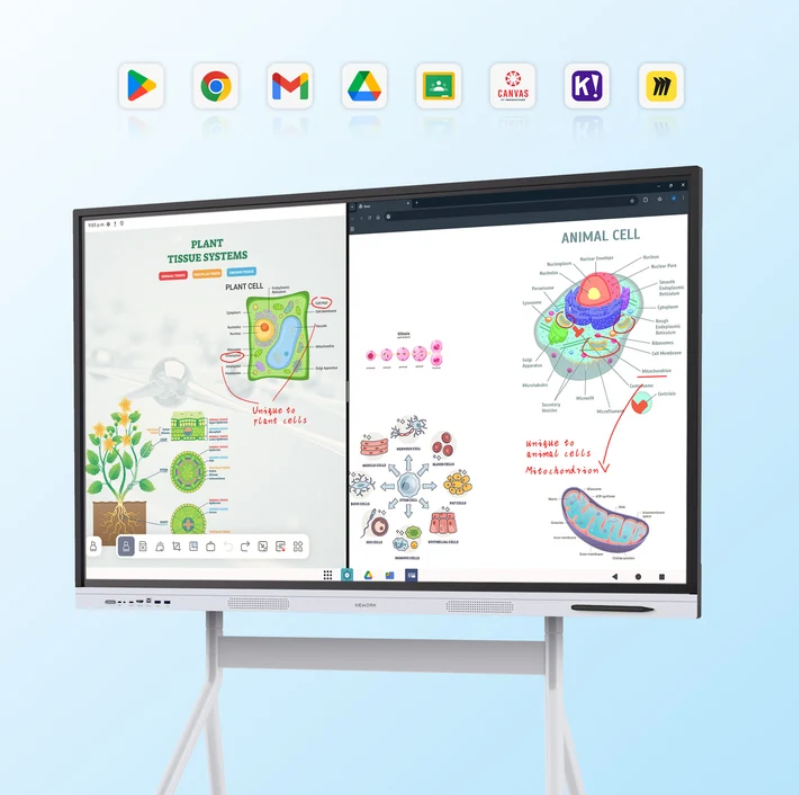
For schools evaluating the NewBoard E series for education, the pilot should include writing, drawing, and collaborative annotation. The series supports an interactive whiteboarding workflow through its built-in whiteboard and compatible online whiteboarding applications. Teachers can test whether these tools help them explain complex ideas without repeatedly switching between separate devices.
Touch response deserves a dedicated test. The stated touch response is under 5 milliseconds, designed to support smooth interaction. Teachers should write short notes, circle important details, and draw diagrams at different points on the screen. They can then assess whether the response feels natural during ordinary classroom activities.
The included stylus and fingertip input provide two ways to interact with lesson content. Test both during handwriting, highlighting, and drawing. AI-powered recognition can convert handwritten notes into digital text and turn sketches into regular shapes. Teachers should check the results using their own handwriting and diagrams, rather than relying on a prepared demonstration.
Check Device Compatibility and Expansion Options
A classroom pilot should cover the equipment teachers already use. Test common presentation files, connected computers, and the applications required for scheduled lessons. Check whether fonts, diagrams, embedded media, and annotations remain usable when content moves between devices.
Schools that need a PC-based teaching environment can assess the optional Windows OPS support. This option may suit workflows that depend on Windows software or established desktop applications. IT staff should confirm the required configuration and software compatibility before installation, since the optional module should not be assumed to be included in every setup.
The trial should also examine how teachers save and distribute lesson materials. After annotating a page, check whether the work can be saved and shared through the selected workflow. Confirm file formats, storage locations, account permissions, and access rules. These details matter when several teachers share resources or students need materials after class.
Gather Feedback From Teachers and IT
A useful pilot includes feedback from people who perform different tasks. Teachers can assess writing comfort, navigation, lesson preparation, and student participation. IT staff can review setup time, connection stability, account management, and the effort required to resolve common issues.
A simple scoring sheet helps organize the results. Rate each task against agreed criteria, then record specific problems beside each score. For example, note whether a teacher needed help connecting a laptop or whether handwritten content required extra editing. Concrete observations are more useful than general comments such as “easy to use.”
Schools should also test the support process. Record who teachers contact when a feature fails and how the issue is documented. Ask the supplier for relevant setup guidance and product documentation. This provides a clearer picture of the work needed to support several classrooms, not just one demonstration room.
Review the Results Before Wider Deployment
At the end of the trial, compare the results with the original goals. Identify which activities worked smoothly, which required additional training, and which depend on changes to the network or classroom setup. A short review meeting can help teachers and IT staff agree on the next steps.
Schools considering NewBoard E series for education can use these findings to assess whether the display matches their teaching methods and technical requirements. They should also review the proposed configuration, deployment process, and ongoing support arrangements before expanding the installation.
Make the Pilot Useful for the Next Decision
A classroom pilot is valuable when it produces evidence that purchasing teams can act on. Clear goals, realistic lesson tests, compatibility checks, and feedback from both teachers and IT staff provide a practical basis for comparison.
Nework smart board solutions are presented for interactive teaching and collaboration, with the company stating that more than 25,000 professional teams use its smart whiteboards. Schools can review its product information and discuss their classroom requirements with the supplier before selecting a configuration.
The final decision should reflect actual classroom needs, available IT resources, and the results of the trial. For procurement teams, this approach offers a more reliable basis for planning than choosing equipment from a feature list alone.
Nework smart board options can be considered alongside the school’s existing infrastructure, teaching objectives, and deployment budget. A carefully documented pilot helps decision-makers identify the configuration that fits their environment and plan the next stage with greater clarity.
